
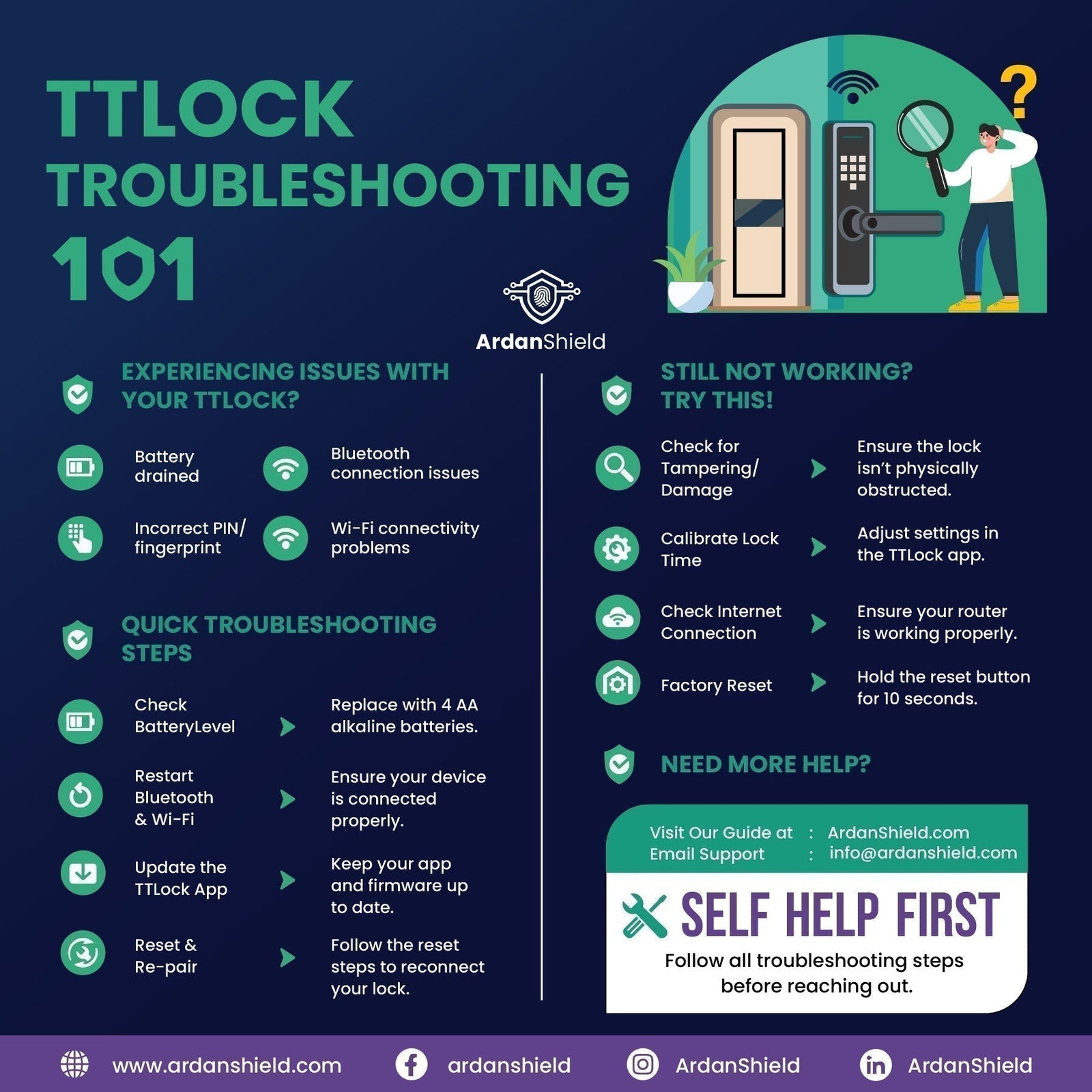

TTLock Troubleshooting Guide UK: Fix Bluetooth, PIN and WiFi Issues
TTLock smart locks are designed to make access easier, but app pairing, PIN codes, Bluetooth, gateways and door alignment can sometimes cause frustration. This UK-focused troubleshooting guide walks you through the most common problems and the fixes to try first.
Quick Answer
If your TTLock smart lock is not working properly, start with the basics: check battery power, make sure the latch or bolt moves freely, restart the app, calibrate the lock clock, confirm Bluetooth permissions, and check gateway placement if remote access is failing. Many TTLock issues are caused by low batteries, weak signal, expired PIN codes, incorrect app permissions or door alignment rather than a faulty lock.
What is TTLock?
TTLock is a smart lock platform used to manage compatible locks through the TTLock app. Depending on the lock model and setup, it can support Bluetooth unlocking, app control, PIN codes, RFID cards, access logs, digital keys and gateway-supported remote access.
In many setups, Bluetooth is used when you are close to the lock. A compatible TTLock Smart Gateway may be used where remote access, live updates or off-site management is required. Features depend on the specific smart lock and gateway setup.
Support note
ArdanShield prioritises support for customers who purchased their smart lock through ArdanShield. If that is you, contact us with your order details, lock model, app screenshots and a description of the issue. If you did not buy from ArdanShield, the troubleshooting steps below may still help.
Quick Fixes to Try First
Before resetting the lock or deleting anything from the app, work through these simple checks. They solve many TTLock issues without needing a full factory reset.
- Check the door and latch: Make sure the latch or bolt moves freely and is not rubbing the frame.
- Replace or reseat the batteries: Remove all batteries for around 60 seconds, then reinsert or replace them with fresh cells.
- Restart the app: Force-quit the TTLock app and reopen it. If needed, restart your phone.
- Check Bluetooth permissions: Make sure Bluetooth and location permissions are enabled for the app if required by your phone.
- Update the TTLock app: Check the App Store or Google Play for updates.
- Check lock firmware: If the app offers a firmware update, follow the in-app guidance carefully.
- Calibrate the lock clock: In the TTLock app, check Lock Settings and look for the lock clock or time calibration option. This can fix some expired-code issues.
Avoid jumping straight to factory reset
A factory reset can remove users, codes and settings. Only use it as a last resort, especially if the lock is used by family members, guests, cleaners, staff or tenants.
Need Help Choosing a More Reliable Setup?
If you are repeatedly fighting Bluetooth pairing, weak gateway signal or code issues, ArdanShield can help you choose a lock and gateway setup that better suits your door, WiFi layout and property type.
Ask for Smart Lock AdviceBluetooth and WiFi Connection Issues
Bluetooth will not connect
Bluetooth issues usually happen when the phone is too far from the lock, the app has lost permissions, another account controls the lock, or the lock is asleep or low on power.
- Stand within 1–2 metres of the lock.
- Make sure Bluetooth is enabled on your phone.
- Check that the TTLock app has the permissions it asks for.
- Force-quit and reopen the app.
- Restart your phone if the app still cannot find the lock.
- Confirm you are logged into the correct owner or authorised admin account.
- Replace the batteries if the lock is slow, unresponsive or intermittent.
Remote access is not working
Remote access normally depends on a compatible gateway, stable WiFi and a good signal path between the gateway and lock. If the lock works locally by Bluetooth but not remotely, the gateway or WiFi setup is usually the first place to check.
- Confirm the gateway is powered and online.
- Check your broadband or WiFi connection.
- Place the gateway closer to the lock where possible.
- Use 2.4 GHz WiFi if required by the gateway.
- Unplug the gateway for around 30 seconds, then reconnect it.
- Check whether the lock is correctly linked to the gateway inside the app.
- Test remote access while away from Bluetooth range.
Quick diagnosis
If Bluetooth works but remote access does not, focus on the gateway, WiFi network and signal path. If neither Bluetooth nor keypad access works reliably, check batteries, lock power and door alignment first.
PIN, Fingerprint, RFID and App Access Issues
PIN code not working
- Check whether the PIN has expired, been deleted or was created as a one-time code.
- Calibrate the lock clock in the TTLock app if available.
- Reissue the code and test it while standing at the door.
- Check whether the code has a time window or date restriction.
- Make sure the user is entering the correct full code sequence.
Fingerprint not recognised
- Clean and dry the fingerprint reader.
- Dry your finger before trying again.
- Cold or very dry hands can scan poorly, so warm your finger and retry.
- Re-enrol the fingerprint, capturing different angles and edges.
- Add more than one finger for the same user where the lock supports it.
RFID card or fob will not read
- Confirm the card or fob has been added to the correct lock.
- Hold it flat against the reader for a moment rather than tapping too quickly.
- Try another enrolled card to rule out a damaged fob.
- Check that the lock battery is not low.
App cannot control the lock
- Check you are logged into the correct TTLock account.
- Confirm you have owner or admin rights.
- Try standing close to the lock and using Bluetooth control.
- Try another authorised phone if available.
- Only factory reset the lock if you understand that users, codes and settings may be removed.
Battery and Power Problems
Battery issues are one of the most common causes of smart lock problems. A lock can appear to have a connection issue when it is actually low on power or struggling under load.
Replace batteries together
Do not mix old and new batteries. Replace the full set together using good-quality batteries recommended for the lock.
Cold weather matters
Battery performance can drop in cold UK conditions. If the lock is on a colder external door, keep spare batteries available.
Use backup access
If the lock becomes unresponsive, use the mechanical key override or emergency power method if supported by the model.
Signs the batteries may be the issue
- Keypad lights are dim or slow to wake
- Fingerprint reader works intermittently
- Lock motor sounds weak or strained
- App connection drops more often than usual
- Remote access is unreliable even when WiFi is working
Door Alignment and UK Weather Issues
A smart lock can only work properly if the mechanical part of the door works properly. In the UK, door movement caused by temperature changes, damp weather and seasonal expansion can affect timber, uPVC and composite doors.
- Check for rubbing: Open and close the door slowly to see if it catches the frame.
- Check latch alignment: The latch or bolt should enter the keep smoothly without needing to force the handle.
- Check uPVC and composite doors: Multipoint mechanisms can become stiff if the door has dropped or the keeps are misaligned.
- Avoid slamming: Repeated impact can affect alignment and put strain on the lock motor.
- Dry the keypad or reader: Heavy rain or condensation can temporarily affect touch panels or fingerprint readers.
Important safety point
If the lock motor sounds like it is struggling, do not keep forcing it. Fix the door alignment first. A stiff latch or bolt can drain batteries and shorten the life of the lock mechanism.
Gateway Placement for Homes and Garden Rooms
Gateway placement is especially important in UK homes with thick walls, external doors, garden rooms, cabins or outbuildings. A gateway too far from the lock can cause remote access to fail even when the lock itself is working.
Keep it close
Place the gateway close to the lock where possible. Around 5 metres or less is a useful starting point.
Use 2.4 GHz WiFi
Many gateways work best on 2.4 GHz WiFi because it usually travels further than 5 GHz.
Watch for barriers
Metal doors, thick walls, insulated garden rooms and long distances can weaken signal.
For compatible TTLock setups, view the TTLock Smart Gateway. If you are using a Tuya-based lock, check whether the Tuya Smart Gateway is the correct route for your setup.
Which ArdanShield Smart Lock Fits This?
If you are troubleshooting because your current lock is unreliable, it may be worth checking whether the lock, gateway and door type are the right match for your property. Below are useful ArdanShield options to compare.
Popular TTLock-Compatible Options
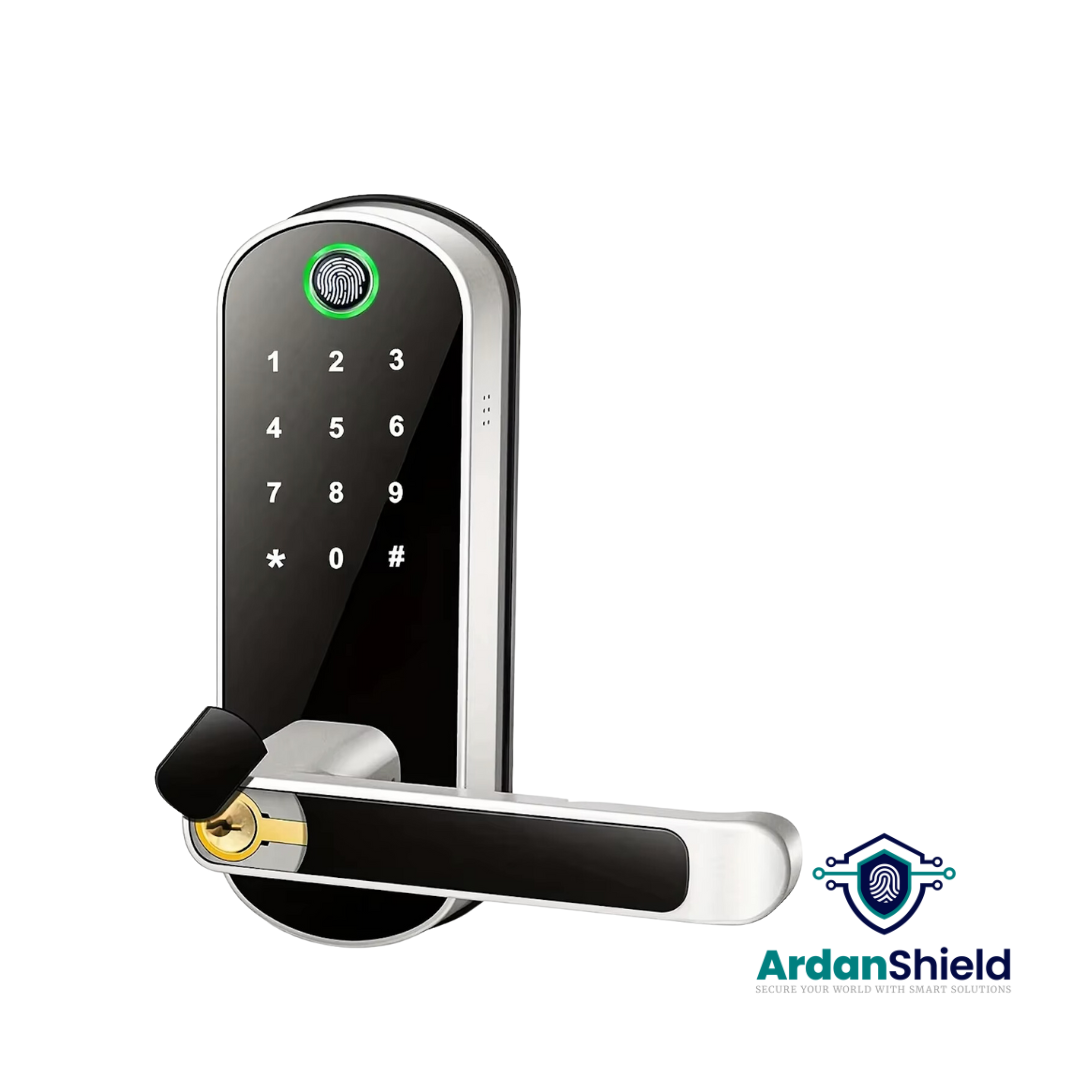
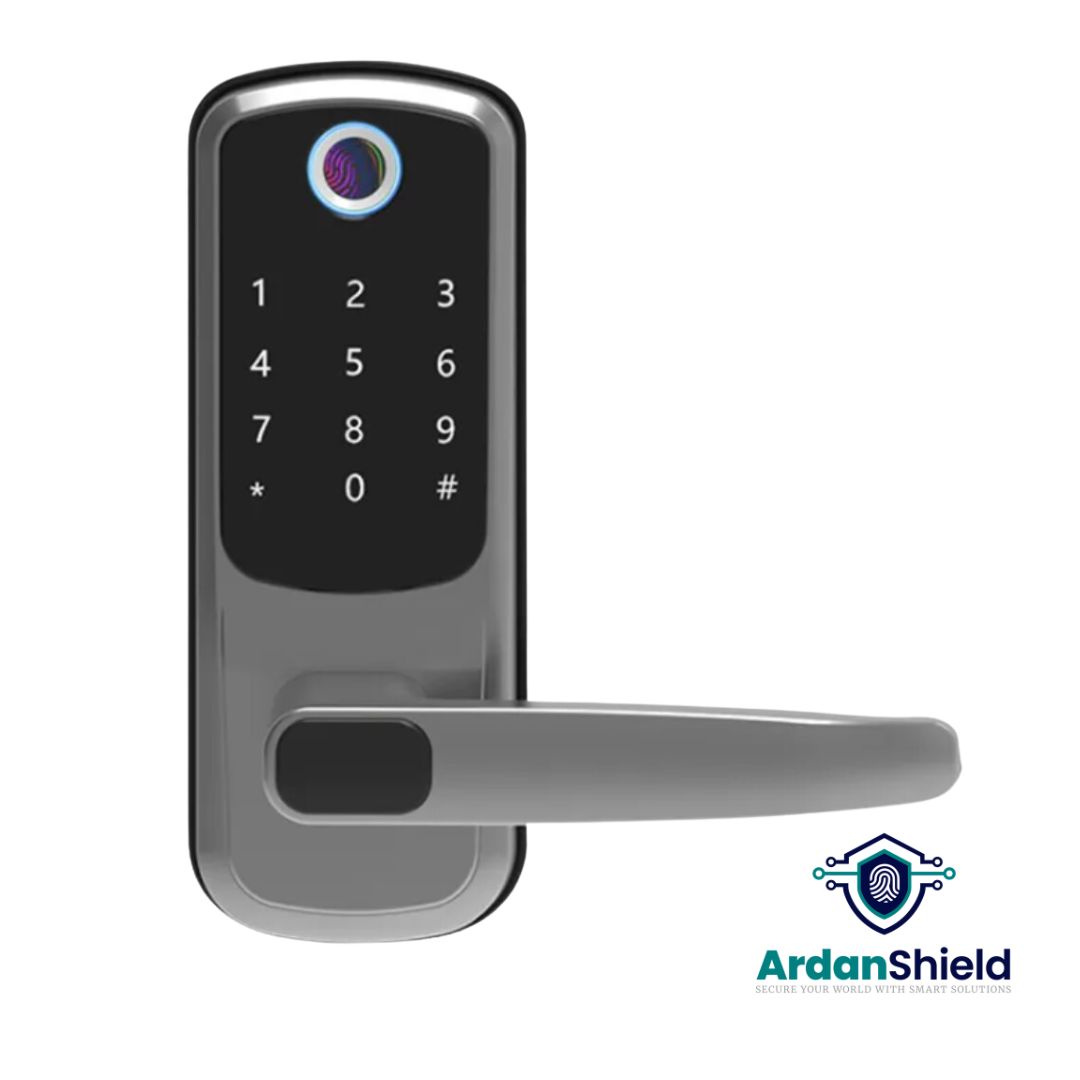
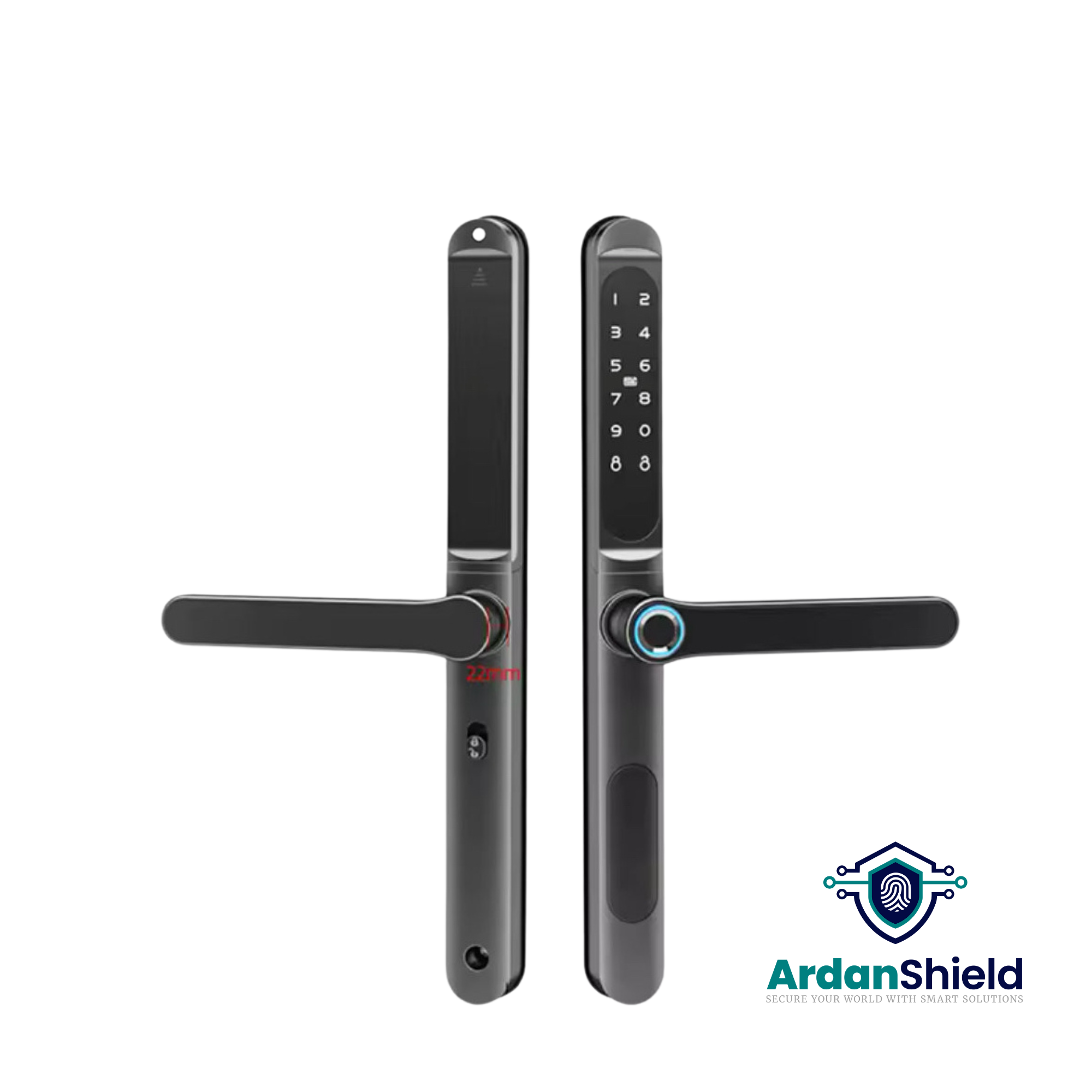
Other Upgrade Options
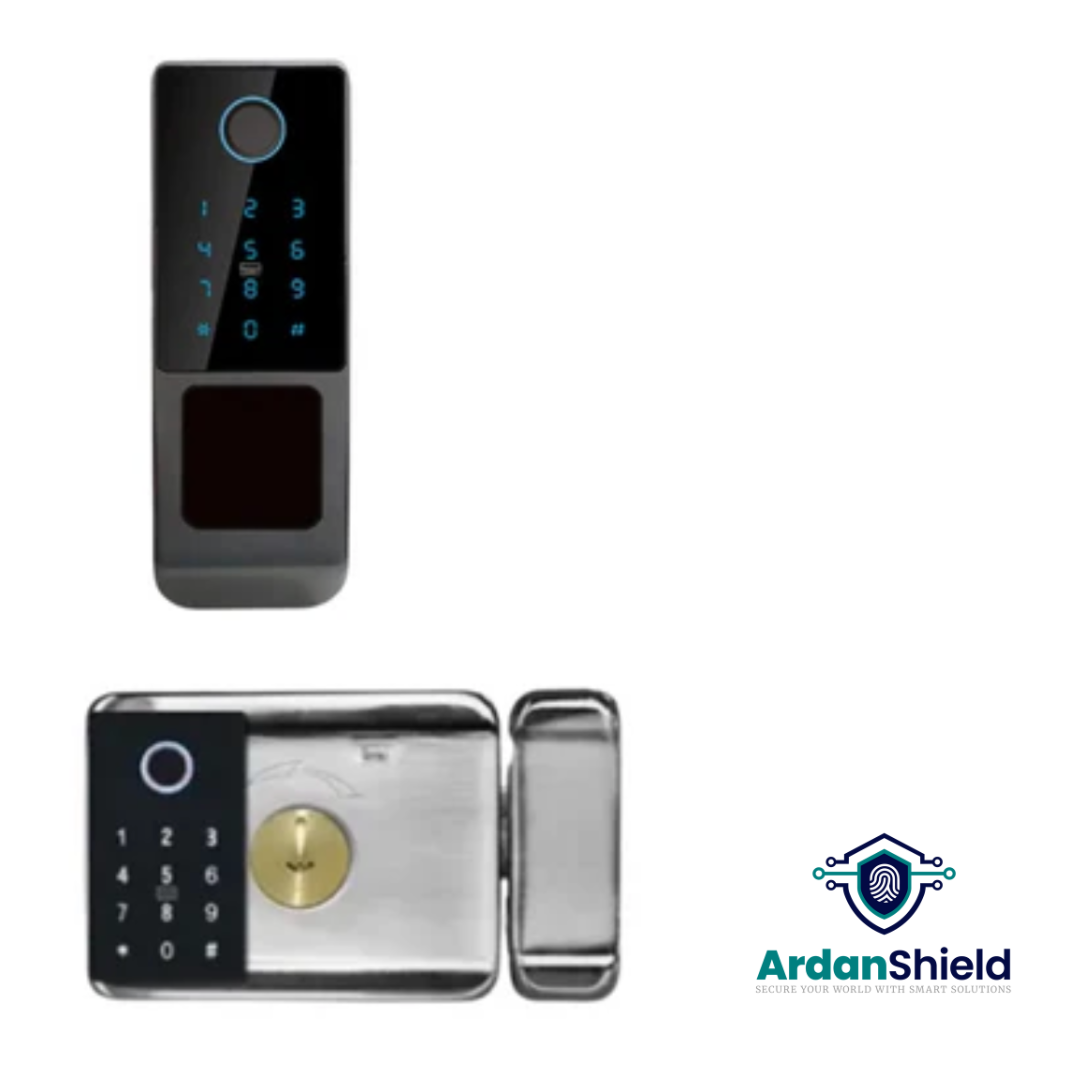
Browse by collection
Explore all smart locks, compare WiFi smart locks, or view compatible smart lock accessories.
Common Mistakes to Avoid
Resetting too early
Factory resets can remove users, codes and settings. Try batteries, clock calibration, app updates and gateway checks first.
Ignoring door alignment
If the latch or bolt is stiff, the lock motor may struggle. Fix the door movement before assuming the app is at fault.
Using the wrong gateway
TTLock and Tuya are different systems. Match the gateway to the lock platform.
Weak WiFi near the door
Garden rooms, thick walls and external doors can weaken signal. Test the gateway location before relying on remote access.
Expired or mistimed PINs
If temporary codes fail, check the code schedule and calibrate the lock clock.
Mixing old and new batteries
Replace all batteries together to avoid inconsistent power and false fault symptoms.
Related Reading
TTLock and Tuya Gateway Guide
Understand how gateways support compatible remote access and smart lock integration.
Read the guideSmart Locks for Airbnb and Rentals
Useful if you are managing guest access, cleaners, tradespeople or short-stay check-ins.
Read the guideFusionGuard™ Product Guide
Learn more about FusionGuard™ and suitable UK smart lock setups.
Read the guideFortiLock™ Product Guide
A useful guide for homeowners and property managers considering FortiLock™.
Read the guideSecureWave™ Product Guide
Explore SecureWave™ as a smart lock option for suitable UK doors.
Read the guideSmart Lock Accessories
Browse gateways and accessories for compatible ArdanShield smart locks.
View accessoriesTTLock Troubleshooting FAQs
Why is my TTLock not connecting by Bluetooth?
Check that Bluetooth is enabled, stand close to the lock, restart the app, confirm permissions and make sure you are logged into the correct owner or admin account. Low batteries can also cause intermittent Bluetooth issues.
Why is my TTLock PIN code not working?
The code may have expired, been deleted, been created as a one-time code, or be affected by incorrect lock time. Check the code settings and calibrate the lock clock inside the app if available.
Do I need a WiFi gateway for TTLock?
Many TTLock setups need a compatible gateway for remote access, live updates and off-site control. Some locks may have built-in WiFi or different requirements, so check the product specification.
What happens if the smart lock batteries die?
Use the mechanical key override or emergency power method if supported by your lock. Then replace the internal batteries with a full fresh set.
Does TTLock work with uPVC and composite doors?
It depends on the lock model and door mechanism. uPVC and composite doors often use multipoint systems, so always check whether the chosen lock is suitable for your door type before ordering.
Should I factory reset my TTLock?
Only use factory reset as a last resort. It can remove users, codes and settings. Try power, battery, app, clock, Bluetooth, gateway and door alignment checks first.
Still Having TTLock Problems?
If the same issue keeps coming back, it may be time to check whether your lock, gateway, WiFi coverage and door type are properly matched. ArdanShield can help you choose the right smart lock setup for your home, rental, HMO, garden room or business door.
Contact ArdanShield SupportBrowse Smart Locks